00 RAW developer · Mac, iPad & iPhone

State-of-the-art image quality.No subscription.

Develop your RAW files with precise colour controls, local adjustments and on-device AI denoise. Try it free for 30 days. One permanent purchase covers Mac, iPad and iPhone.

Mac iPhone iPad Windowsnext Linuxnext
Coming to the App Store Explore the tools

Free download · a 30-day trial · one permanent unlock
No subscription. No separate OhMyRAW account. Updates included.

OhMyRAW developing a photograph on the Mac — the original and the developed frame side by side, with the adjustment panel open
Develop on the Mac: the original and the developed frame side by side, with My Go-To, a panel of the sliders you choose, on the right.
Image quality
Colour & detail
Curves, colour mixer, local masks, healing and on-device AI denoise.
Emulsions
Fifteen stocks
The neutral render, thirteen colour looks and a black & white, each with a strength slider.
Library
A folder
Originals, previews, edits and ratings in a folder you choose. Shared between devices through iCloud Drive.
One-time purchase
No subscription
Thirty days free, then one unlock for Mac, iPad and iPhone. Updates included.
01 Emulsions

Fifteen emulsions.

Emulsions give your photographs different colour and contrast treatments, from neutral colour and black & white to film-inspired looks. Preview each on your photograph and adjust its strength.

The film-inspired looks are creative interpretations, not exact reproductions of particular film stocks.

  • 01
    A red fire truck on a city street, rendered with OMR Color
    OMR Color
    The neutral render, and the default.
  • 02
    The same frame in black and white with OMR Pan
    OMR Pan
    Panchromatic black & white.
  • 03
    The same frame with OMR Pastel 400
    OMR Pastel 400
    A soft professional negative, pastel in its saturation.
  • 04
    The same frame with OMR Everyday 200
    OMR Everyday 200
    A punchy consumer negative.
  • 05
    The same frame with OMR Everyday 200+
    OMR Everyday 200+
    Everyday 200 with whiter whites and a redder gold.
  • 06
    The same frame with OMR Portray
    OMR Portray
    Gentle contrast, warm skin, open shadows.
  • 07
    The same frame with OMR Gold
    OMR Gold
    Golden warmth, richer contrast, clear blues.
  • 08
    The same frame with OMR Parade
    OMR Parade
    Warm colour, matched to a camera's own JPEG rendering.
  • 09
    The same frame with OMR Portrait 400
    OMR Portrait 400
    Soft warm mids and a modest matte black.
  • 10
    The same frame with OMR Pro 400 Cool
    OMR Pro 400 Cool
    A cool pastel negative with a cyan shadow lift.
  • 11
    The same frame with OMR Vivid 50
    OMR Vivid 50
    Near-black shadows and strong, clean saturation.
  • 12
    The same frame with OMR Instant Fade
    OMR Instant Fade
    A warm-brown fade, creamy whites, olive greens.
  • 13
    The same frame with OMR Ektara 100
    OMR Ektara 100
    Crisp warm colour, orange reds, cyan blues.
  • 14
    The same frame with OMR Cine 800T
    OMR Cine 800T
    Cold mids, blue shadows, stronger reds. Tungsten cinema.
  • 15
    The same frame with OMR Koda 64
    OMR Koda 64
    Firm contrast, crimson reds, violet-leaning blues.

The same RAW file with each emulsion. All other settings are unchanged.

A red fire truck on a city street, rendered neutrally with OMR Color The same frame rendered with OMR Cine 800T
OMR ColorOMR Cine 800T

Drag to compare OMR Color with OMR Cine 800T on the same develop.

Strength

Every emulsion has a strength slider.

Adjust how strongly the selected emulsion affects the photograph, then continue editing with the other controls.

Presets

A preset is a saved develop.

Save an emulsion and your adjustments as a preset to use on other photographs. Organise presets in folders and sync them with your library between Mac, iPad and iPhone.

The Looks tab on the Mac: the fifteen emulsions previewed on the open photograph, with the strength slider and the presets beneath
The Looks tab on the Mac: each emulsion previewed on the open photograph, the strength slider, and the presets beneath.
02 The suite

The tools.

Light, colour, detail and finishing, on Mac, iPad and iPhone alike. The exceptions are marked.

01

Light

Exposure, contrast, highlights, shadows, whites and blacks, plus tone curves for the individual colour channels.

02

Colour

White balance with an eyedropper, an eight-band colour mixer with hue, saturation and luminance, three-way colour grading with blending, and camera calibration for the primaries.

03

Detail

Texture and clarity, sharpening and noise reduction that take the ISO into account, film grain. AI denoise runs on the device itself, on Mac, iPad and iPhone; nothing is uploaded.

04

Masks

Brush, linear and radial masks, up to eight at once, each carrying its own light, colour, detail and effects. On the Mac, a sky mask, an AI selection from a click and a skin mask seeded from a face, all refinable with the brush.Mac

05

Heal & clone

Spots with a feathered edge and a source you can move; clone when the repair should copy the source exactly. Every spot stays editable, in the history, on every device.

06

Geometry & lens

Crop, straighten, orient, and a guided upright: draw a line or two on what should be vertical. Lens distortion and vignetting are corrected from the profile your camera wrote into the file, or from lens profiles you download in the Mac app.

07

Diffusion & dehaze

Black Mist blooms the highlights and Cross Screen puts four-point stars on the lights. Both add light rather than blur, across the frame or inside a mask. Dehaze, likewise global or masked.

08

Export

On the Mac: JPEG, PNG, TIFF and WebP in sRGB, Display P3 or Adobe RGB, 16-bit PNG and TIFF, 32-bit EXR, or the untouched original byte for byte, single or batch. On iPhone and iPad: JPEG or HEIC at full resolution, to Photos or Files.

My Go-ToA panel of the sliders you choose, in the order you choose.
HistoryEvery edit is kept as a step. Go back to any of them.
Copy & pasteApply adjustments to multiple photographs, choosing which settings to copy.
CompareCompare with the original while keeping the same crop and rotation.
The Masks workspace on the Mac: a sky mask shown as a colour overlay, the mask list, and the mask's own light and colour adjustments
The Masks workspace on the Mac: a sky mask shown as a colour overlay, the mask list, and that mask's own adjustments.
03 Diffusion filters

Two diffusion filters.

Black Mist adds glow around highlights. Cross Screen adds four-point stars to light sources. Apply either to the whole photograph or within a mask.

Black Mist

Glow around highlights

Adjust the bloom and glow around bright areas. Within a mask, you can also choose the glow colour or use the colour of the light source.

OhMyRAW developing a dim tram interior: the ceiling lamp blooms softly while the handrails stay sharp, with a mask's Black Mist controls open
Brushed into a mask, so only the lit end of the carriage takes it.
Cross Screen

Four-point stars on the lights

Adjust the length, width and angle of four-point streaks around light sources.

OhMyRAW developing a convertible at dusk: four-point stars on the headlights and smaller ones on the string lights behind, with a mask's Cross Screen controls open
A mask again, over the car and the lights beyond it. A mask can carry both filters at once.
04 Workflow

Library, Review, Develop.

Three workspaces for the day after a shoot: bring in the card, cull it to keepers, develop one frame, paste that develop across the session, export the set.

01

Library

Import from a folder or a card. Tag as you go, then filter by flag, rating, tag, camera, lens or date. Last import keeps today's shoot in view.

02

Review

One frame large, inside the filtered set. Pick, reject, rate, step on; auto-advance is optional. Rejects stay until you remove them. On the iPhone the same verdicts are in Rate & pick.

P pick X reject 1–5 rate ←→ step
03

Develop

Looks, Adjust, Crop, Masks, Heal and Skin. Step to the next photograph and back without losing your place; the filmstrip follows the filter you set.

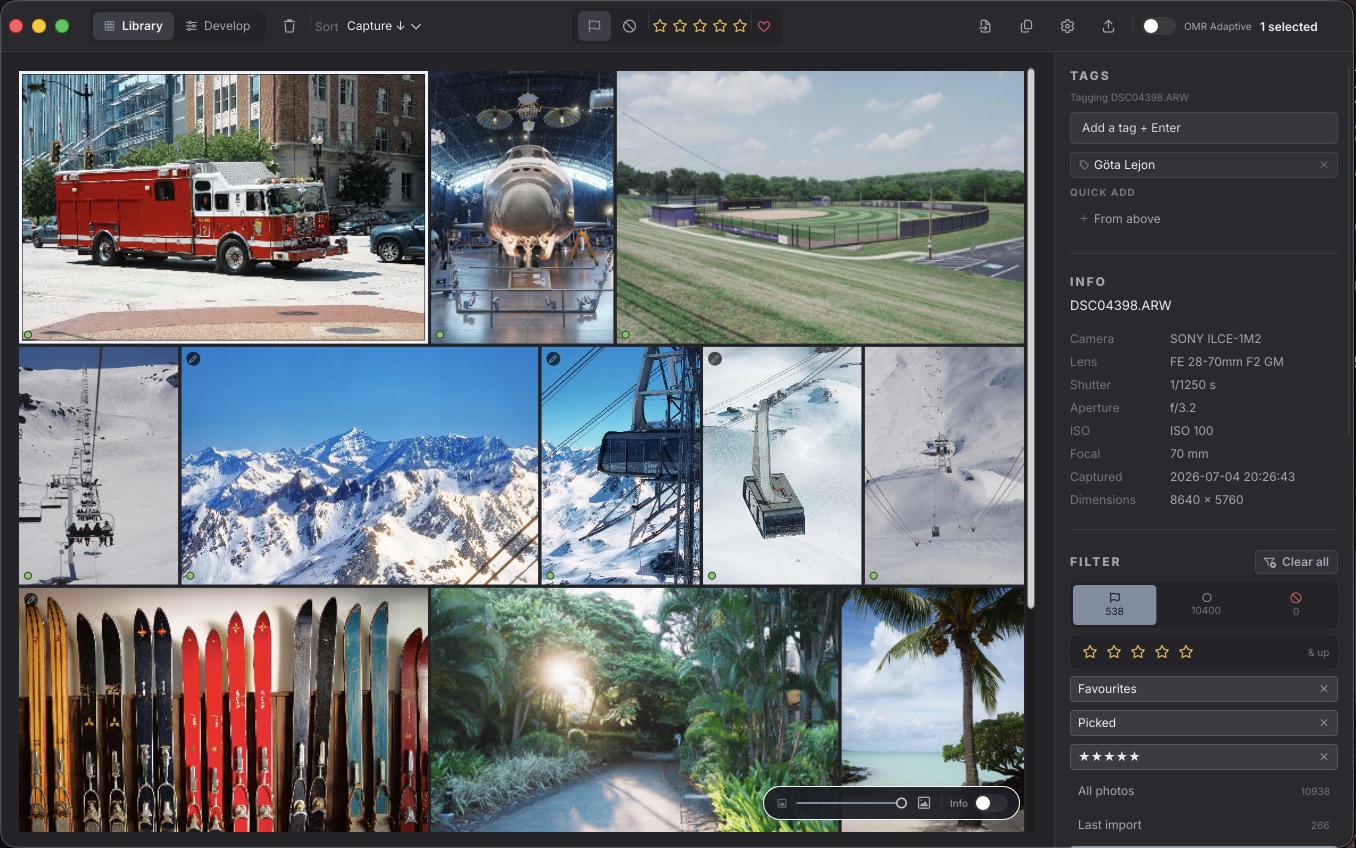
The OhMyRAW Library on the Mac: a grid of photographs with the filter sidebar and Details panel open
Library: the grid, the filters, the Details panel with tags and metadata.
The OhMyRAW Review workspace: one photograph large with pick, reject and rating controls
Review: one frame at a time.
The OhMyRAW export dialog over the library, a set of photographs selected, the format menu open
Export: thirteen photographs selected, one dialog. JPEG, PNG, TIFF, WebP, 16-bit, EXR, or the untouched originals. It runs in the background.
05 Mac, iPad, iPhone

One library, three devices.

Keep a library in iCloud Drive to share photographs, edits, ratings and flags between Mac, iPad and iPhone. Changes appear on the other devices after iCloud syncs them. OhMyRAW does not require a separate account or storage subscription.

OhMyRAW on an iPad in landscape: the photograph with the develop panel beside it and a filmstrip beneath
OhMyRAW on an iPhone: a photograph with the Light sliders along the bottom
iPhone
Import from Photos

Import photographs from Photos and create a library directly on your iPhone. A Mac is not required.

On demand
Originals are downloaded when needed.

Libraries processed on the Mac include compact editing previews. On iPhone and iPad, originals are downloaded as needed for full-resolution work. Libraries created only on mobile use the originals for editing. Set a storage budget for downloaded originals.

iPad
Apple Pencil support

Masks, healing and cropping take the Pencil, with pressure shaping the brush's flow. The desktop's keyboard shortcuts work with a keyboard, and the whole frame stays in view while you work.

Mac
Choose where to keep your library

Store the library locally, on an external drive or in a synced folder. Select its location in the app.

What a library is
Library storage

The library folder contains your originals, editing metadata and any generated previews. You can back up the folder or move it, then open it from its new location.

06 Formats

Not only RAW.

Edit RAW files, phone photographs, scans and JPEGs in the same library.

Camera RAW

Twenty RAW formats

Sony, Canon, Nikon, Fujifilm, Panasonic, OM System, Pentax, Sigma, Hasselblad, Phase One, Kodak and more, plus DNG, so Apple ProRAW, Leica and Ricoh come along too.

ARW · CR2 · CR3 · NEF · NRW · DNG · RAF · RW2 · ORF · PEF · SRW · RAW · 3FR · IIQ · ERF · MOS · MRW · X3F · KDC · DCR

HEIF family

HEIC and AVIF

Import HEIC and AVIF photographs alongside your RAW files.

HEIC · HEIF · HIF · AVIF · AVCI · HEICS

Everyday images

JPEG, TIFF and more

Use colour adjustments, masks, emulsions and diffusion filters on JPEG, PNG, TIFF, WebP and BMP images.

JPEG · PNG · TIFF · WEBP · BMP

Fredrik
07 The story

Why I built it.

I'm a photographer, and I've spent 40 years developing graphics software. I wanted an alternative to expensive subscriptions and software lock-in, without sacrificing my workflow or image quality.

That's why I built OhMyRAW: the image quality and editing tools I need for my photography, a library stored in a folder I choose, and a one-time purchase.

The first release is for Mac, iPad and iPhone, with a free trial so you can try it on your own photographs.

— FredrikGothenburg, Sweden

08 Try it, then buy it

A free 30-day trial.

Download OhMyRAW free from the App Store and start the 30-day trial in the app. It never charges automatically and it never renews. Bring in your own library, develop your own photographs, export them at full resolution.

Days 1–30

Editing and export included

Try the editing tools available on your device, including emulsions, diffusion, masks and AI denoise. The trial includes developed export.

After day 30, without the unlock

Keep editing; unlock export

Your library and editing tools remain available after the trial. Exporting edited photographs requires the permanent unlock. You can still copy unchanged originals.

One purchase. No subscription.

One permanent unlock in the app covers Mac, iPad and iPhone under the same Apple Account, with Restore Purchases to bring it to a new device. No subscription, no separate OhMyRAW account, no licence key. Updates are included.

Windows and Linux are next. The first release is for Mac, iPad and iPhone through the App Store. When the Windows and Linux builds ship, they will open with a direct purchase of their own.

Permanent unlock
€49ONCE

Planned introductory price · the App Store shows your local price before you confirm

  • Mac (Apple silicon), iPad and iPhone, one purchase
  • Updates included
  • No subscription, no separate OhMyRAW account
  • Free 30-day trial
  • Refunds through Apple, under Apple's terms
Coming to the App Store

Free download · requires macOS 12 or later on Apple silicon, iOS or iPadOS 26 or later

State-of-the-art image quality.No subscription.

Download for free and start the 30-day trial in the app. A permanent App Store purchase unlocks developed export after the trial.

Coming to the App Store

Mac (Apple silicon) · iPad · iPhone — Windows and Linux next